From a texture photo
Photograph stone, fabric, leather, or plaster and turn it into a normal map for material work. Flat, even lighting gives the cleanest result.
Free · No upload · OpenGL & DirectX
Turn any image into a normal map in your browser — free, no upload, no signup.
Two textures run through the generator with the default settings, so you can judge the output before loading your own image.
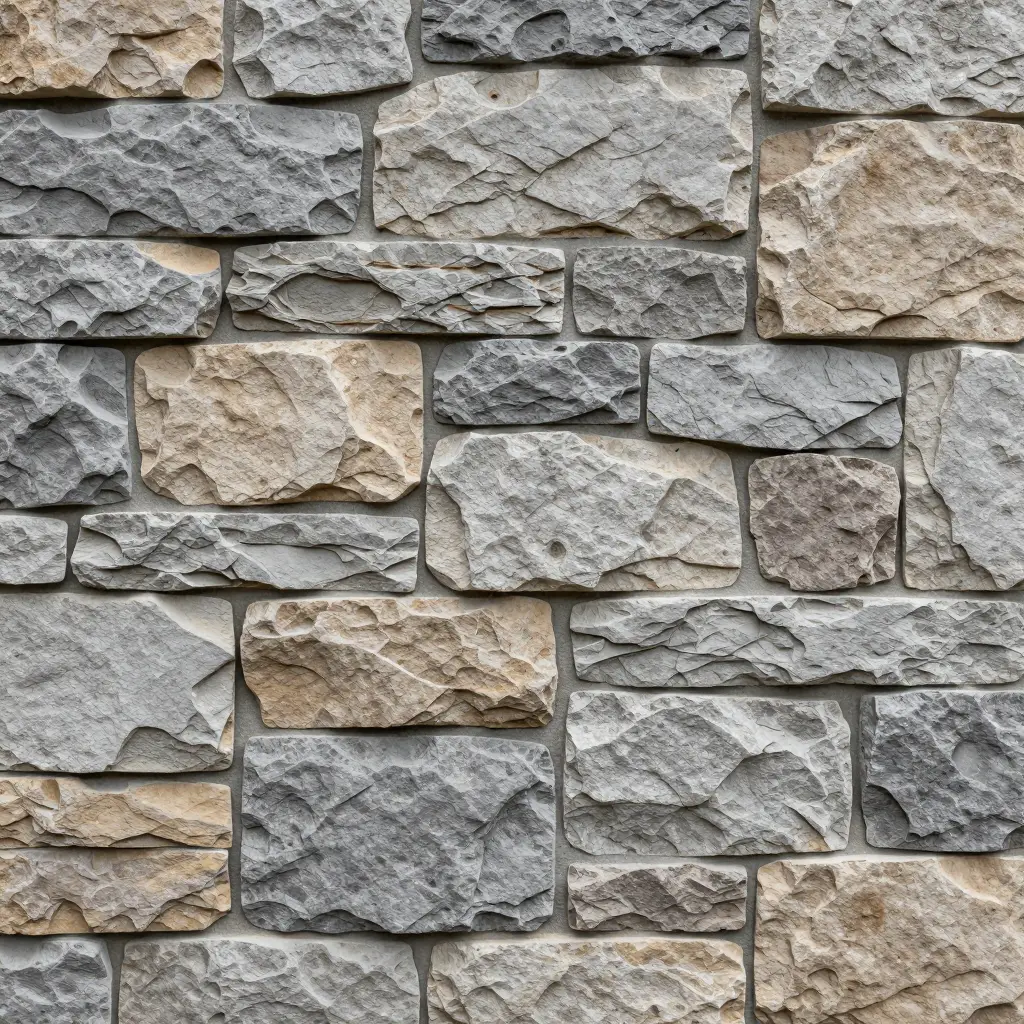
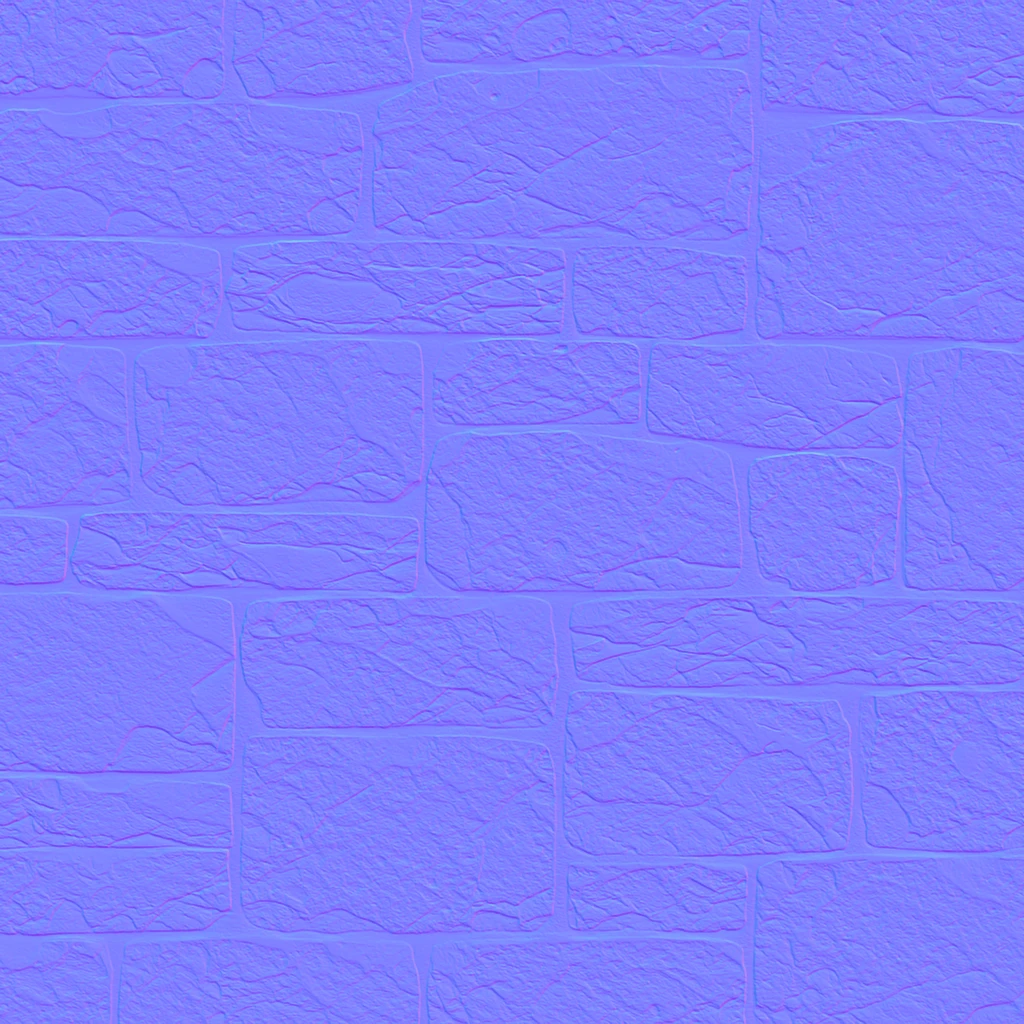
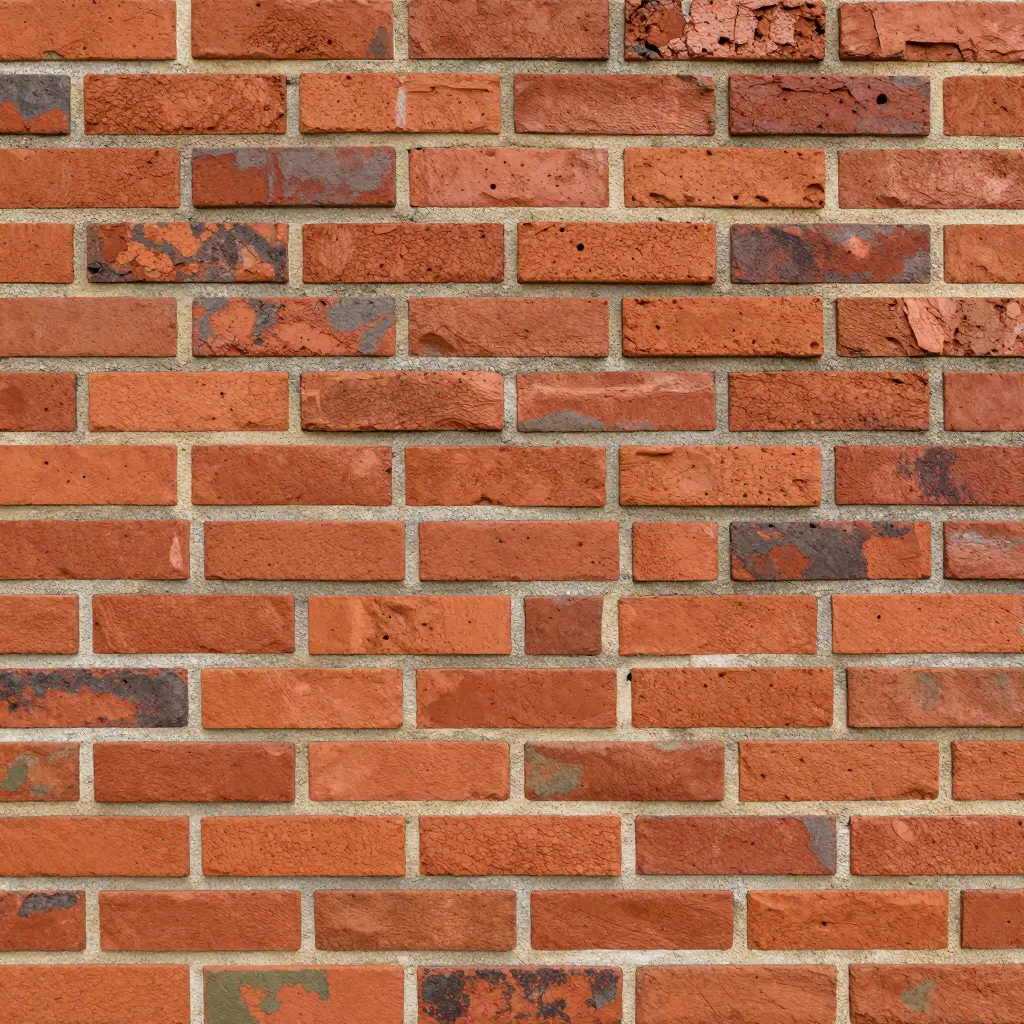
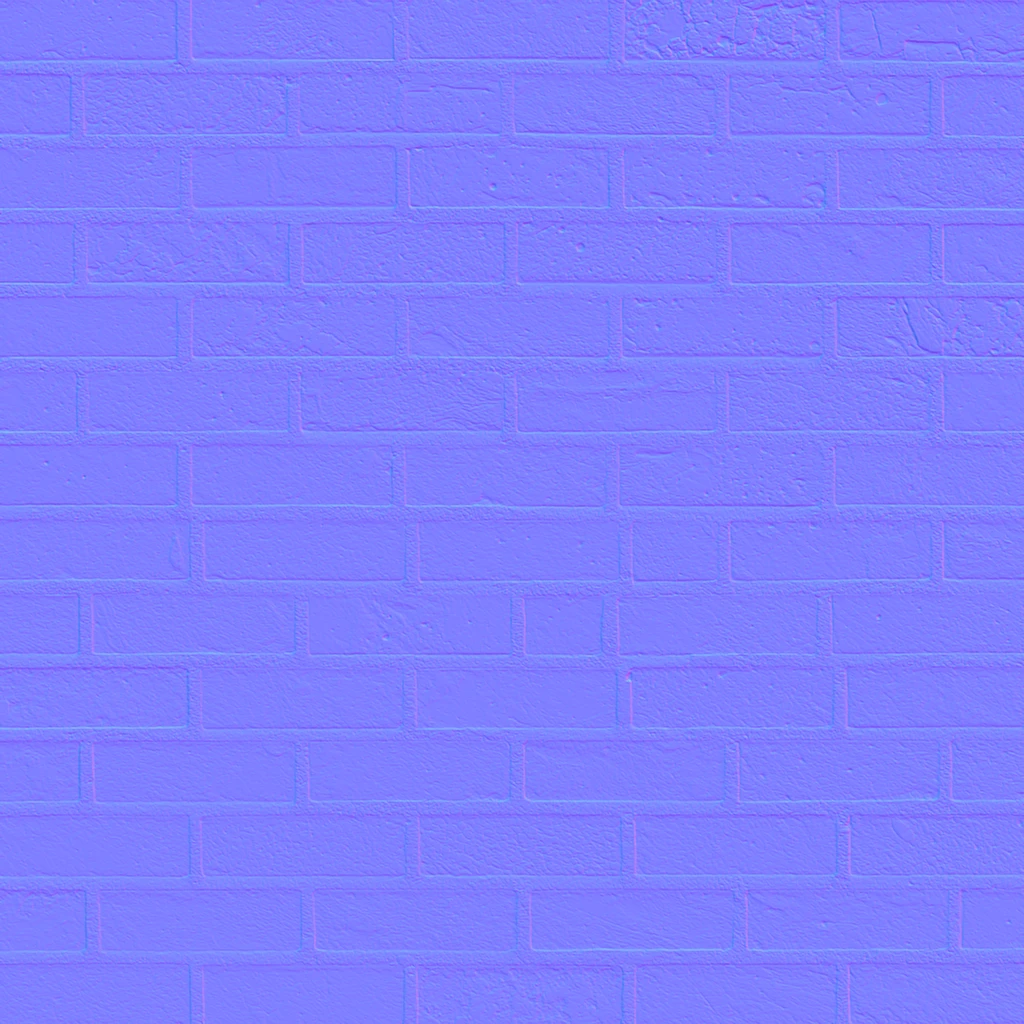
Both normal maps were exported from this tool with the default settings (strength 2, OpenGL).
The generator reads brightness as height. Anything you can express as a grayscale image can become a normal map.
Photograph stone, fabric, leather, or plaster and turn it into a normal map for material work. Flat, even lighting gives the cleanest result.
A grayscale depth map already encodes height, so it converts directly. Drop the file in and pick the convention your engine expects.
Paint brighter where the surface should rise. Hand-painted height maps and 2D sprites both work — smoothing helps soften brush strokes.
Four decisions, then one download. Each step below tells you what the option actually changes.
Use a photo or drawing where bright areas should read as raised and dark areas as recessed. Shadows and printed patterns are read as bumps, so even lighting matters more than resolution.
Strength sets how steep the bumps look; lower it if the map looks noisy or faceted. Smoothing blurs the height field before the normals are computed, which removes grain at the cost of fine detail.
OpenGL (Y+) is what Blender, Unity, and Godot expect. Unreal Engine uses DirectX (Y−). If bumps look inverted in your engine, switch the convention and export again.
Download the PNG, then in your engine set the texture type to Normal Map (or disable sRGB on it). A texture left in sRGB mode will shade incorrectly.
A normal map adds surface relief without extra geometry. These are the situations where that pays off.
You have a brick, rock, or metal texture and want it to catch light on a low-poly mesh instead of looking flat.
Your 2D game uses dynamic lights and you want characters or tiles to react to them, so you need a matching normal map per sprite.
You are building a procedural or photo-based material and need a bump source that a Normal Map node can consume.
You estimated a depth map from a photo and want terrain or relief shading that reacts to light in a viewer or engine.
The honest spec sheet, so you know the boundaries before you start.
Input is JPG, PNG, or WebP up to 40 MB. The export is an 8-bit PNG with a maximum side of 4096 px; larger sources are scaled down proportionally.
The generator reads luminance as height. Shadows, specular highlights, and printed patterns in a photo will be interpreted as bumps.
The wrap option keeps edge gradients continuous so opposite borders match. It cannot turn a non-tiling texture into a seamless one.
This tool produces a single normal map PNG. It does not generate ambient occlusion, roughness, displacement, or any other maps.
What people check before they download.
Yes. There is no charge, no watermark, and no account. Everything runs in your browser.
No. There is no registration, login, or credits on this site.
No. The image is decoded and processed in your browser's memory and is released when you replace it or leave the page. Nothing is sent to a server.
They differ in the green channel direction (Y+ vs Y−). Blender, Unity, and Godot expect OpenGL; Unreal Engine expects DirectX. If bumps look inverted in your engine, switch and re-export.
No. The Wrap edges option only keeps the normal map's edge gradients continuous so the borders meet cleanly. Whether the underlying texture tiles seamlessly depends on the source image, which this tool does not change.
Start at the default of 2. Raise it if the surface looks too flat in your engine, lower it if edges look faceted or noisy. Preview changes appear as soon as you move the slider.
This tool does not estimate depth from photos. Use our sister tool Depth Anything: estimate a depth map (1 credit per image), download the grayscale result, and drop it into the generator above.
Open the generator, drop an image, and download the PNG — it takes seconds.